
Last Updated on by ICT BYTE
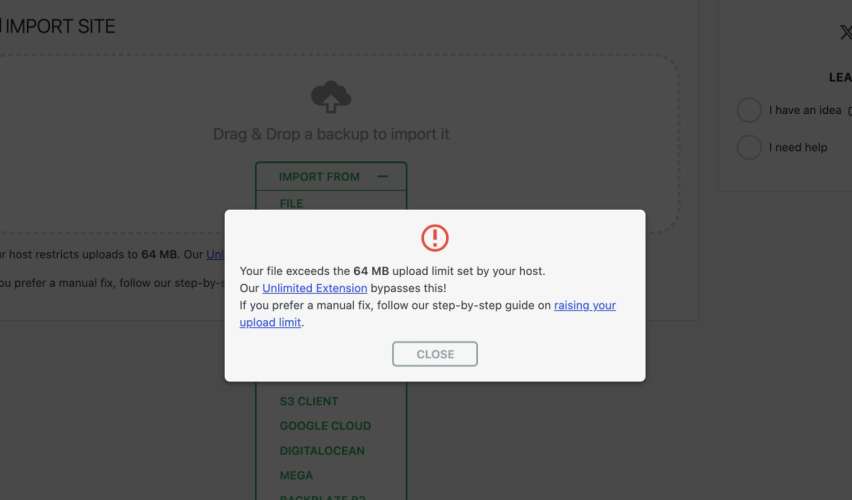
Your file exceeds the 64 MB upload limit set by your host.
If you’ve ever tried to upload a large image, video, plugin, or theme file to your WordPress site and been hit with an error like “The uploaded file exceeds the upload_max_filesize directive in php.ini”, you’re not alone. This is one of the most common issues WordPress beginners run into, and thankfully, it’s also one of the easiest to fix.
In this complete guide, you’ll learn exactly what the PHP upload limit is, why WordPress enforces it, and five reliable methods to increase it — even if you’ve never touched server settings before.
What Is the PHP Upload Limit in WordPress?
WordPress runs on PHP, a server-side scripting language. PHP has built-in configuration settings that control how much data can be uploaded or processed in a single request. Two directives are especially important here:
- upload_max_filesize – controls the maximum size of a single file you can upload.
- post_max_size – controls the maximum size of an entire form submission, including all files. This value should always be equal to or larger than upload_max_filesize.
Most shared hosting providers set these values conservatively (often between 2MB and 64MB) to save server resources. That’s great for the hosting company, but not so great when you’re trying to upload a 100MB video file or a media-heavy theme.
How to Check Your Current PHP Upload Limit
Before making changes, check your current limit:
- Log in to your WordPress dashboard.
- Go to Media > Add New.
- Look below the upload area — WordPress displays a line like “Maximum upload file size: 64 MB.”
You can also check via Tools > Site Health > Info > Server, which lists upload_max_filesize, post_max_size, and memory_limit directly.
Method 1: Increase PHP Upload Limit via wp-config.php
This is the fastest method for many users, though it doesn’t work on every host (some hosts restrict overrides here).
- Connect to your site via FTP or your hosting file manager.
- Locate wp-config.php in your root WordPress directory.
- Add the following lines just above the line that says
/* That's all, stop editing! Happy blogging. */:
@ini_set('upload_max_filesize', '256M');
@ini_set('post_max_size', '256M');
@ini_set('memory_limit', '256M');
@ini_set('max_execution_time', '300');
- Save the file and re-upload it.
- Refresh the Media Upload page to confirm the new limit.
If this doesn’t change anything, your host likely disables ini_set() overrides, and you’ll need one of the methods below.
Method 2: Edit the .htaccess File
If you’re on an Apache server (most shared hosting is), you can add these directives to your .htaccess file, located in your WordPress root directory:
php_value upload_max_filesize 256M
php_value post_max_size 256M
php_value memory_limit 256M
php_value max_execution_time 300
php_value max_input_time 300
Always back up your existing .htaccess file before editing it — a syntax error here can bring down your entire site. If your site breaks after saving, simply restore the backup.
Method 3: Create or Edit php.ini
If you have access to your site’s root directory (common on cPanel hosting), you can create a file named php.ini (or edit the existing one) and add:
upload_max_filesize = 256M
post_max_size = 256M
memory_limit = 256M
max_execution_time = 300
Some hosts use a file called user.ini instead of php.ini — if php.ini doesn’t work, try creating a .user.ini file with the same content. Note that changes to php.ini or .user.ini may take a few minutes to propagate since PHP caches configuration files.
Method 4: Contact Your Hosting Provider
Many managed WordPress hosts — including some premium providers — lock down server configuration files entirely for security reasons. If none of the above methods work, the quickest and most reliable fix is to open a support ticket and simply ask your host to raise the upload_max_filesize and post_max_size values for your account. Most hosting support teams can do this in minutes.
This is also the safest method for beginners, since you won’t risk breaking anything by editing server files yourself.
Method 5: Use a WordPress Plugin
If you’d rather avoid touching code entirely, several free plugins can increase your upload limit directly from the WordPress dashboard:
- Increase Maximum Upload File Size
- WP Increase Upload Filesize
Simply install and activate the plugin, then follow its settings panel to set your desired upload limit. Keep in mind that plugins can only raise the limit up to what your server’s hard cap allows — if your host caps uploads at 64MB at the server level, a plugin usually can’t override that ceiling. In that case, Method 4 becomes necessary.
Which Method Should You Use?
| Method | Best For | Difficulty |
|---|---|---|
| wp-config.php | Beginners with FTP access | Easy |
| .htaccess | Apache-based hosting | Easy |
| php.ini | cPanel/shared hosting | Medium |
| Contacting host | Managed hosting, locked servers | Easiest |
| Plugin | Non-technical users | Easiest |
If you’re not comfortable editing files, start with the plugin method or contact your host’s support team. If you’re slightly more technical, try wp-config.php first, then .htaccess, then php.ini.
Troubleshooting: Still Getting Upload Errors?
If you’ve increased the limit but still see errors, check the following:
- Clear your browser cache and try uploading again.
- Check memory_limit — a low PHP memory limit can cause upload failures even if upload_max_filesize is high enough.
- Check server-level restrictions — some hosts enforce hard caps that user-level files cannot override.
- Verify file permissions on wp-config.php, .htaccess, or php.ini — some hosts require specific permission settings for these files to take effect.
- Confirm you edited the correct php.ini — some servers have multiple php.ini files for different PHP versions.
Final Thoughts
Increasing the PHP upload limit in WordPress is usually a quick fix once you know where to look. Start with the method that matches your comfort level and hosting setup — whether that’s a simple code snippet in wp-config.php, a quick plugin install, or a message to your hosting provider’s support team. Within minutes, you should be able to upload larger media files, themes, and plugins without hitting that frustrating file size error again.