
Last Updated on by Samita KC
The Invalid URL in NotebookLM error is one of the most common issues users face while adding web sources for research, summaries, or note-taking. This problem usually appears when NotebookLM cannot access or process the web link you have provided, interrupting your workflow.
NotebookLM is designed to work with public and accessible online content, but many users unknowingly add links that require login, are restricted, or contain unsupported formats. As a result, the system fails to fetch the information and displays an error message.
This guide explains why this issue occurs, how to fix it step by step, and what best practices you should follow to avoid similar problems in the future. Whether you are a student, researcher, or content creator, these solutions will help you use NotebookLM more efficiently and without interruptions.
Understanding the Invalid URL in NotebookLM Error
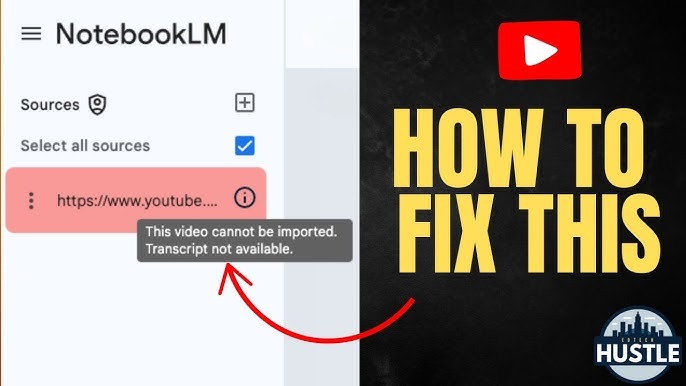
The Invalid URL in NotebookLM occurs when the system cannot fetch content from a webpage. NotebookLM only supports public, static, and accessible web pages, and private or dynamic pages trigger this error.
Common Causes of NotebookLM Link Issues
Improper URL Format
Incorrect URLs missing https:// or containing typos cannot be processed.
Example:
❌ www.example.com/article
✅ https://www.example.com/article
Private or Login-Required Pages
NotebookLM cannot read:
- Private Google Docs
- Pages requiring sign-in
- Organization-restricted content
Always use public links.
Unsupported Content Types
NotebookLM does not support:
- YouTube videos
- Google Drive folders
- Social media posts
- Interactive dashboards
Use static text-based pages for best results.
Broken or Expired Links
Links returning 404 errors will trigger NotebookLM URL issues. Verify all pages are active before adding them.
Step-by-Step Fixes for NotebookLM URL Errors
Check Public Accessibility
Open links in an incognito window. If the page loads without login, NotebookLM should accept it.
Use Public and Clean Web Pages
Ensure your sources are:
- Publicly accessible
- Login-free
- Not geo-restricted
Blogs and documentation pages are ideal.
Upload PDFs or Text Files
If the error persists, download the content as a PDF or text file and upload it directly. This method bypasses link restrictions.
Remove Tracking Parameters
Tracking codes can trigger errors. Clean URLs before submission.
❌ https://example.com/page?utm_source=google
✅ https://example.com/page
Refresh Browser
Temporary glitches may cause errors. Try:
- Refreshing the page
- Clearing cache and cookies
- Using Google Chrome
Best Practices to Prevent NotebookLM URL Errors
Using the right sources is the most effective way to avoid URL-related issues in NotebookLM. Following these best practices helps ensure smoother content imports and fewer interruptions during research or note-taking.
- Use clean and short URLs
Always choose links without tracking parameters or unnecessary extensions. Simple URLs are easier for NotebookLM to process and reduce the chance of link validation failures. - Prefer blogs, articles, and documentation
Text-based web pages such as blog posts, research articles, and official documentation are the most reliable sources. These formats are usually static and publicly accessible. - Upload PDFs for academic sources
Journals, research papers, and reports often work better when uploaded as PDFs. This ensures NotebookLM can read the full content without access restrictions. - Avoid social media or video links
Platforms like YouTube, Facebook, or interactive web tools are not supported. Stick to written content to prevent errors while adding sources.
Following these simple practices will help you maintain a consistent workflow and use NotebookLM more effectively for academic and professional tasks.
Internal Resources
- NotebookLM tools for students
- Latest ICT tools and AI technologies
- Common ICT errors and solutions
- Educational technology guides
External Authority Resources
Conclusion: Resolve NotebookLM URL Errors Effectively
The Invalid URL in NotebookLM error is usually caused by private pages, unsupported content types, broken links, or improper URL formatting. Using public sources, clean URLs, or PDF uploads ensures smooth access. Following these steps improves your NotebookLM workflow and helps manage sources efficiently. For additional guidance on AI tools, ICT solutions, and technical issues, ICTBYTE provides beginner-friendly and reliable resources to enhance digital skills.