Last Updated on by Samita KC
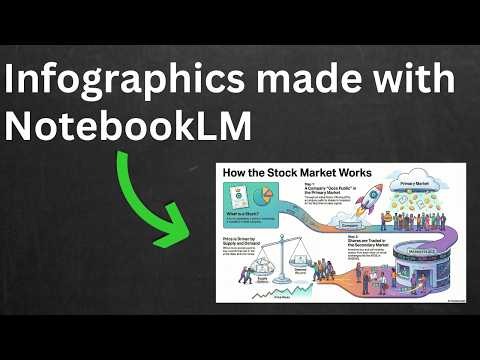
Creating visually appealing infographics has never been easier, thanks to Notebook LM. In this guide, you will learn how to Create Infographics in Notebook LM step by step, making your data and ideas more engaging and easier to understand. Whether you are a student, professional, or content creator, Notebook LM provides intuitive tools and templates that simplify the infographic design process, helping you convey complex information clearly and effectively.
With Notebook LM, you can combine text, images, charts, and icons seamlessly, allowing you to highlight key points and present information in a visually compelling way. By learning to Create Infographics in Notebook LM, you can enhance presentations, reports, and online content, making your work more attractive and memorable. This guide will cover all the essential tips, techniques, and best practices to ensure that every infographic you create stands out and communicates your message with clarity.
Understanding Notebook LM for Visual Content Planning
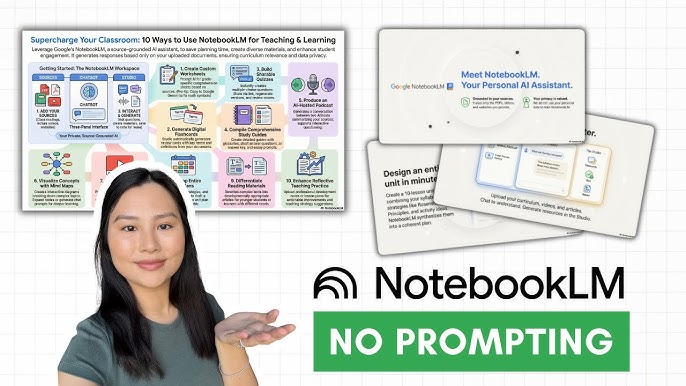
Notebook LM is an AI-powered research and note-organization tool by Google. It helps users analyze uploaded documents, extract insights, and generate structured content. This makes it ideal for preparing text that will later be transformed into infographics.
How to Create Infographics in Notebook LM Step by Step
Collecting Reliable Sources for Infographic Research
The first step is adding trusted sources such as PDFs, articles, and website links. Notebook LM analyzes these materials and highlights key ideas that can be visually represented.
Using AI Summaries to Prepare Infographic Content
Infographics require concise and scannable information. Notebook LM can summarize long documents into short bullet points, statistics, and highlights that are suitable for visual layouts.
Structuring Information for Better Visual Flow
A well-structured infographic improves readability and engagement. Notebook LM helps organize content into titles, sections, steps, and comparisons.
Writing Short Text Blocks for Infographics
Visual content works best with minimal text. Use Notebook LM to generate:
- One-line explanations
- Section labels
- Headings and captions
This approach ensures clarity and avoids overcrowding the infographic.
Exporting Content to Design Tools
Once the content is ready, copy it from Notebook LM and paste it into design tools such as Canva, Piktochart, or Adobe Illustrator. Notebook LM acts as the content engine, while design tools handle the visuals.
Best Practices for Creating SEO-Friendly Infographics
To achieve better results:
- Keep each section short
- Focus on one topic per infographic
- Use numbers and icons
- Maintain logical content flow
This method improves both user experience and search visibility.
SEO Benefits of Using AI for Infographic Content
Using AI-assisted research tools improves SEO by:
- Ensuring content accuracy
- Increasing dwell time through visuals
- Attracting backlinks
- Improving readability
Common Mistakes to Avoid
Avoid these issues when preparing infographic content:
- Copying long paragraphs
- Adding too much data
- Ignoring visual hierarchy
- Using unverified sources
Clear, focused content performs best.
Who Should Use Notebook LM for Infographic Preparation?
This approach is ideal for:
- Students
- Bloggers
- Digital marketers
- Researchers
- Educators
Recommendations: Internal Links
For readers who want to explore more AI, SEO, and technology-related guides, these internal resources from ICTBYTE are highly recommended:
https://ictbyte.com/technology/first-design-in-canva-for-beginners/
https://ictbyte.com/technology/ai-generated-text-analyzing-tools/
https://ictbyte.com/technology/humanize-ai-generated-text/
https://ictbyte.com/digital-marketing/plagiarism-detection-free-tools/
https://ictbyte.com/seo/what-is-keyword-cannibalization/https://ictbyte.com/masters-of-computer-science/data-analytics-visualization-microsyllabus-mcs/
These internal links help users stay engaged on the website and improve overall SEO performance.
Recommendations: External Links
For authoritative and trusted information beyond this guide, you can also explore the following external resources:
- Google NotebookLM Help Center
https://support.google.com - Search Engine Journal – Visual Content SEO
https://www.searchenginejournal.com - HubSpot – Infographic Marketing Guide
https://www.hubspot.com - Canva Design School – Infographics
https://www.canva.com
These external links strengthen content credibility and follow Google’s E-E-A-T guidelines.
Conclusion
Now you understand how to create infographics in Notebook LM in a practical and SEO-friendly way. While the tool does not design graphics, it plays a crucial role in research, summarization, and content organization, which are essential for effective infographics.
By combining Notebook LM with professional design tools, you can create engaging, search-optimized infographics that add real value to your content strategy.